 Johannes Kamprad
endeavouros-i3wm-setup
maintainer: joekamprad ---> setup for i3-wm under EndeavourOS new config 01-2021 <---
!! To disable autostarting firefox with this readme edit ~/.config/i3/config and comment out this line:
#exec --no-startup-id firefox https://github.com/endeavouros-team/endeavouros-i3wm-setup/blob/main/README.md
~/.config/i3/config is the main configuration file for i3, get into this file and configure i3 as you ike, all settings have comments to give you information about the following setting.
Tutorial for i3-wm settings:
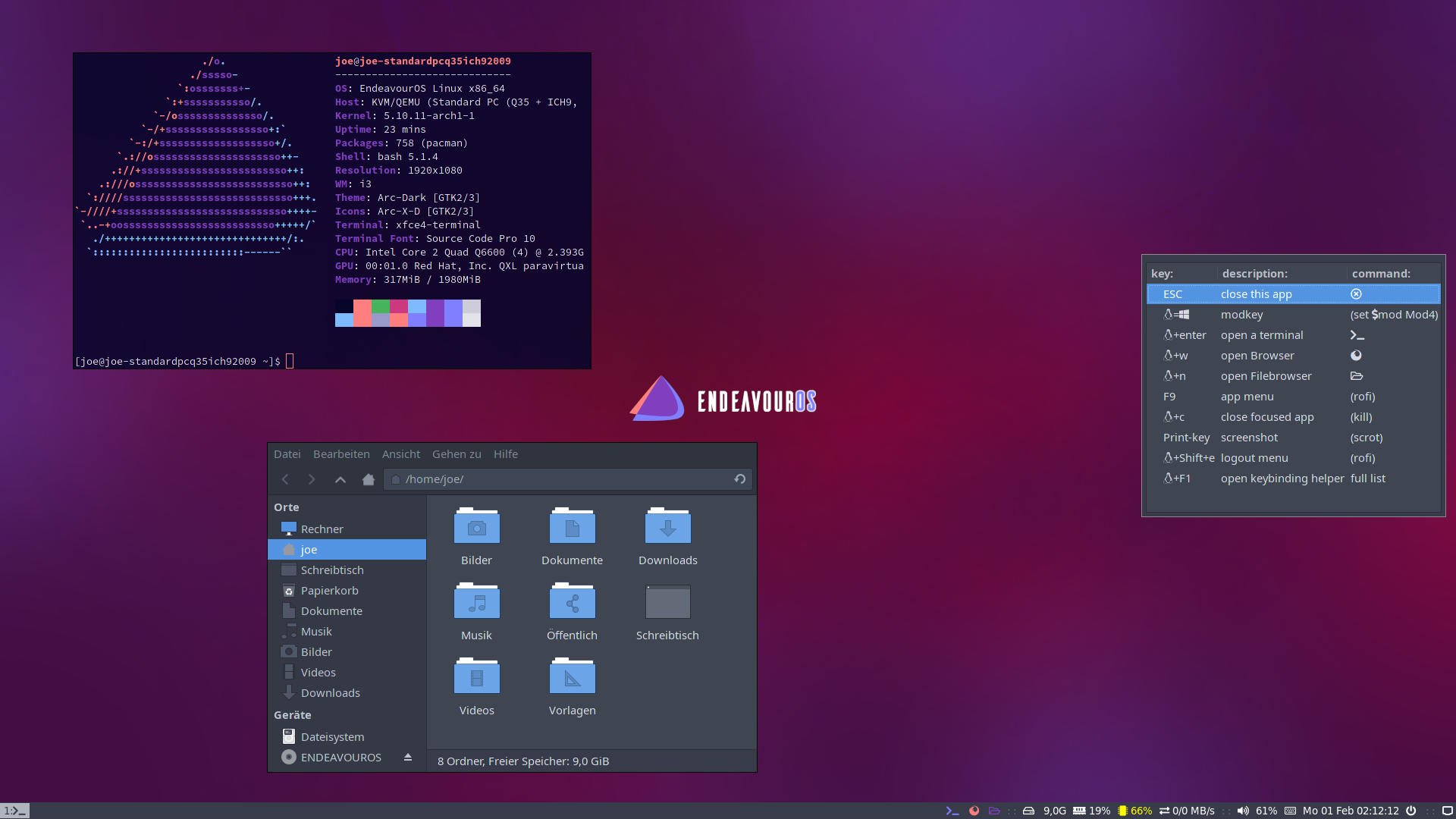
- background handled by nitrogen
- gtk3 theme handled by lxappearance-gtk3
- Filebrowser = Thunar
- default Terminal-Emulator = xfce4-terminal
- Text-Editor = xed
- dex : autostarting apps from /etc/xdg/autostart/ (*)
- Notifications are done with dunst: CONFIG FILE = ~/.config/dunst/dunstrc
Warning: if you install EndeavourOS-i3 aside with a full DE (XFCE4, GNOME, Plasma e.t.c.)
you need to comment out dex starter from ~/.config/i3/config file !!!
#exec --no-startup-id dex -a -s /etc/xdg/autostart/:~/.config/autostart/
Main shortcuts:
[mod] key is set to the winkey (or should i call it linkey?)
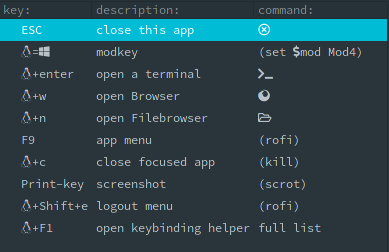
default i3-wm keycodes:
https://i3wm.org/docs/userguide.html#_default_keybindings
Display setup with arandr
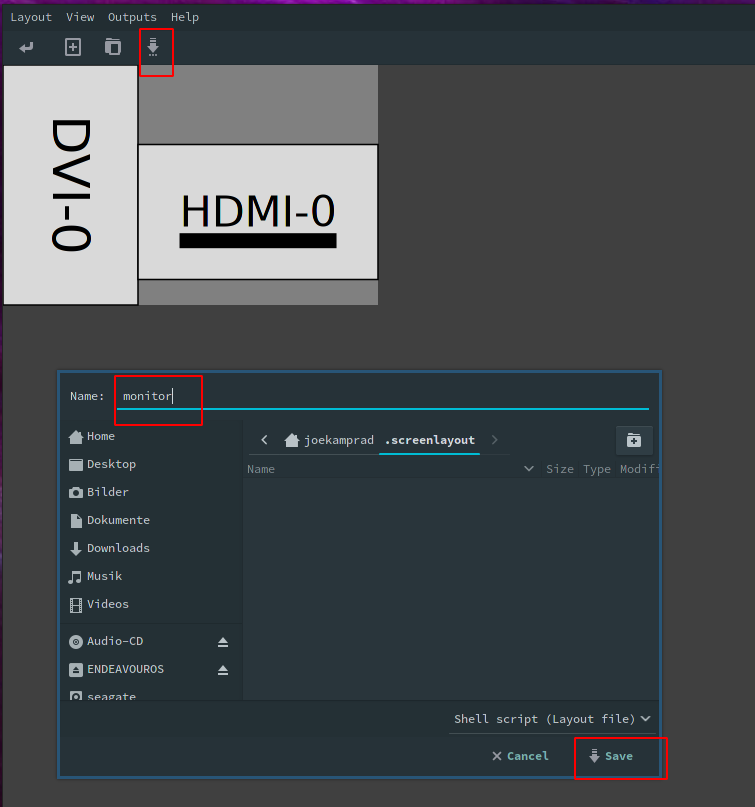
- open arandr and setup display/s as you need.
- save the setup from arandr menu or button exactly with filename
monitor. ---> on i3 EndeavourOS we have a starter line in the ~/.config/i3/config
# start a script to setup displays
# uncomment the next line, use arandr to setup displays and save the file as monitor:
exec --no-startup-id ~/.screenlayout/monitor.sh
this will handle to set display on each login.
Tiling:
is set to default for i3wm and can be changed to:
-
stacking: Only the focused window in the container is displayed. You get a list of windows at the top of the container.
-
tabbed: so each new window will open fullscreen as a tab, you can change between window-tabs with mouse or shortcut: [mod]+Left focus left (left arrow key) [mod]+Right focus right (right arrow key)
i3blocks:
- pulseaudio (mousewheel volume level, rightclick open pulseaudio control)
- weather (openweather you need to get city code and apikey first [adding it to ~/.config/i3/scripts/openweather.sh]) get your api key here: https://openweathermap.org/appid and City code: https://openweathermap.org/find?q= (search your city and take the city code from the url in your browser [7 numbers at the end of the url])
- tray-icons (showing network-manager and update-icon)
- logout button (poweroff, logout, suspending, hibernate e.t.c.)
panel bar (i3-blocks):

- CONFIG FILE = ~/.config/i3/i3blocks.conf
Logout Menu:
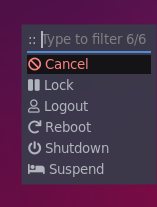
- CONFIG FILE = ~/.config/i3/scripts/shutdown_menu
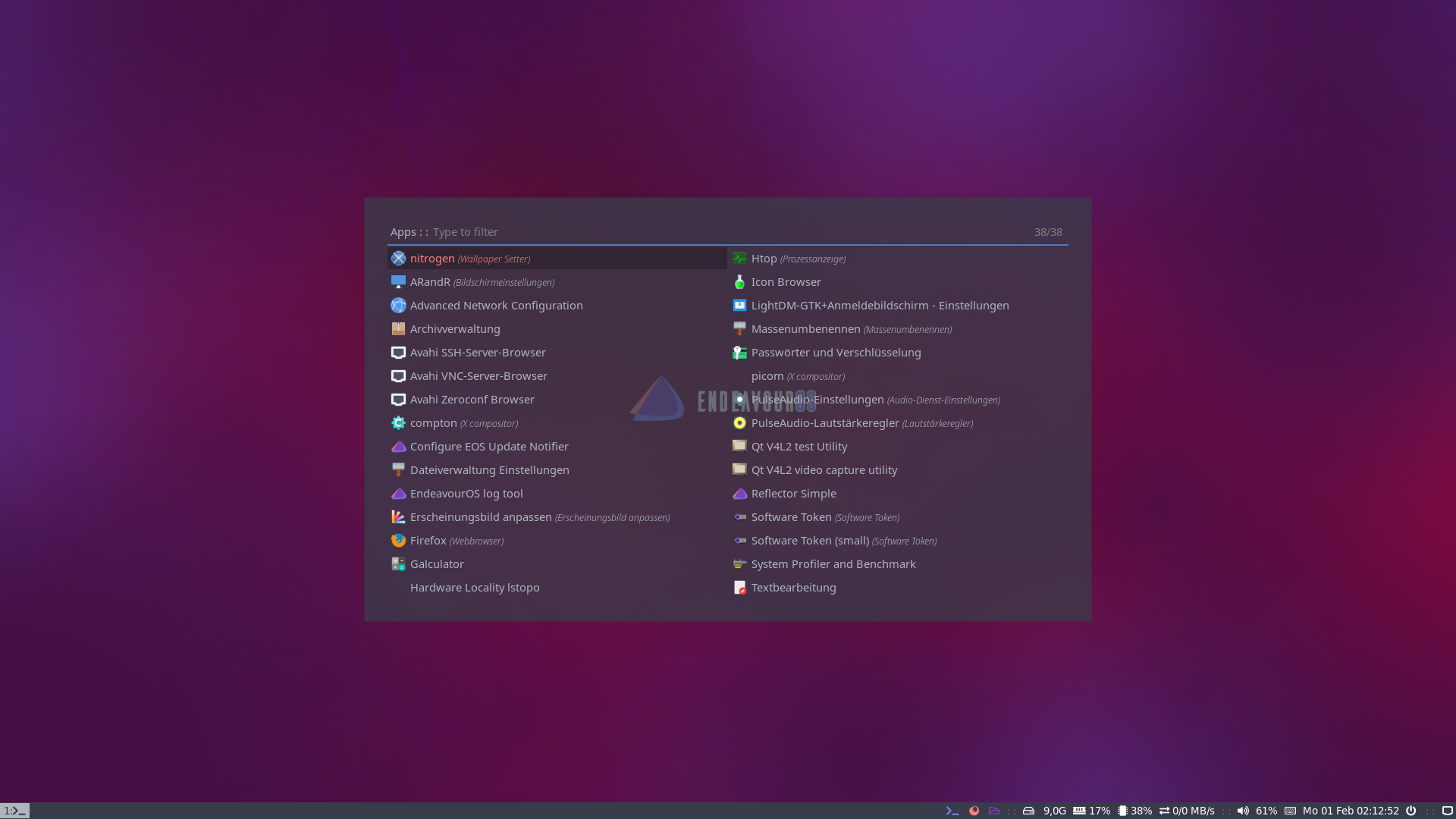
application menu (rofi):
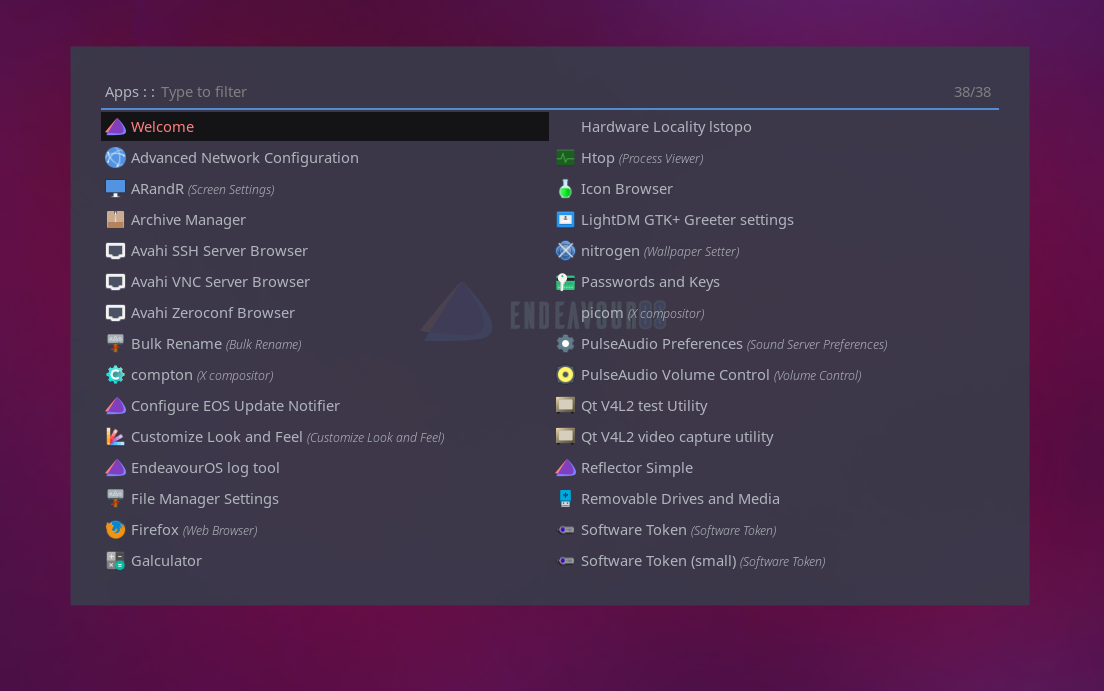
- rofi color-scheme: ~/.config/rofi/config.rasi
Tutorial to install EndeavourOS-i3 setup from scratch
for later installs, if you have installed another DE on initial install from the ISO
- get the dot files
- copy files to the right directories (.config of your user):
- copy scripts inside ~/.config/i3/scripts must be executable ! [chmod +x] them please ;)
- install needed packages
git clone https://github.com/endeavouros-team/endeavouros-i3wm-setup.git
cd endeavouros-i3wm-setup
cp -R .config/* ~/.config/
chmod -R +x ~/.config/i3/scripts (make scripts executable)
dbus-launch dconf load / < xed.dconf (setup xed-editor)
If you have the old EndeavourOS default i3-setup installed you need to remove .Xresources file
(old color profile ot used anymore for rofi menus):
rm ~.Xresources
install needed apps and programms for i3wm:
sudo pacman -S --needed - < packages-repository.txt