mirror of
https://github.com/10h30/endeavouros-i3wm-setup.git
synced 2026-07-17 21:53:15 +09:00
 Johannes Kamprad
91 lines
3.7 KiB
Markdown
91 lines
3.7 KiB
Markdown
# i3-EndeavourOS
|
|
## joekamprad: setup for i3 under [EndeavourOS](https://endeavouros.com)
|
|
|
|
# Tutorial for i3-wm settings:
|
|
* background handled by [nitrogen](https://wiki.archlinux.org/index.php/nitrogen)
|
|
* gtk3 theme handled by [lxappearance-gtk3](https://wiki.lxde.org/de/LXAppearance)
|
|
* Filebrowser = [Thunar](https://docs.xfce.org/xfce/thunar/start)
|
|
* default Terminal-Emulator = [xfce4-terminal](https://docs.xfce.org/apps/terminal/start)
|
|
* Text-Editor = [xed](https://github.com/linuxmint/xed)
|
|
|
|
# Main shortcuts:
|
|
[mod] key is set to the winkey (or should i call it linkey?)
|
|
|
|

|
|
|
|
* [mod]+**enter** = open terminal (xfce4-terminal)
|
|
* [mod]+**w** = open Browser (firefox)
|
|
* [mod]+**n** = open Filebrowser (thunar)
|
|
* **F9** = app menu (rofi)
|
|
* **$mod+c** = close focused app [kill]
|
|
* **Print**-key = screenshot (scrot)
|
|
|
|
# default i3-wm keycodes:
|
|
https://i3wm.org/docs/userguide.html#_default_keybindings
|
|
|
|
# Tiling:
|
|
is set to default for i3wm and can be changed to:
|
|
* stacking:
|
|
Only the focused window in the container is displayed. You get a list of windows at the top of the container.
|
|
|
|
* tabbed:
|
|
so each new window will open fullscreen as a tab, you can change between window-tabs with mouse or shortcut:
|
|
[mod]+**Left** focus left (left arrow key)
|
|
[mod]+**Right** focus right (right arrow key)
|
|
|
|
# i3blocks:
|
|

|
|
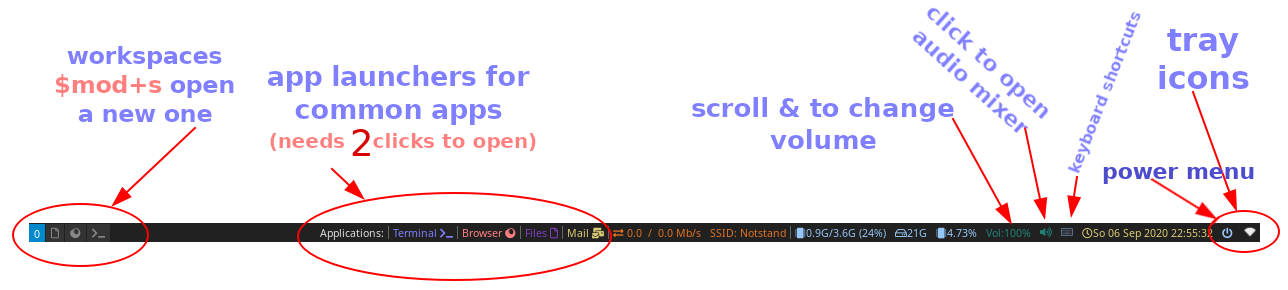
* pulseaudio (mousewheel volume level, rightclick open pulseaudio control)
|
|
* weather (openweather you need to get city code and apikey first [adding it to ~/.config/i3/scripts/openweather.sh])
|
|
get your api key here: https://openweathermap.org/appid and City code: https://openweathermap.org/find?q= (search your city and take the city code from the url in your browser [7 numbers at the end of the url])
|
|
* tray-icons (showing network-manager and update-icon)
|
|
* logout button (poweroff, logout, suspending, hibernate e.t.c.)
|
|
|
|
# panel bar (i3-blocks):
|
|
|
|
* CONFIG FILE = ~/.config/i3/i3blocks.conf
|
|
# Logout Menu:
|
|

|
|
* CONFIG FILE = ~/.config/i3/i3blocks.conf
|
|
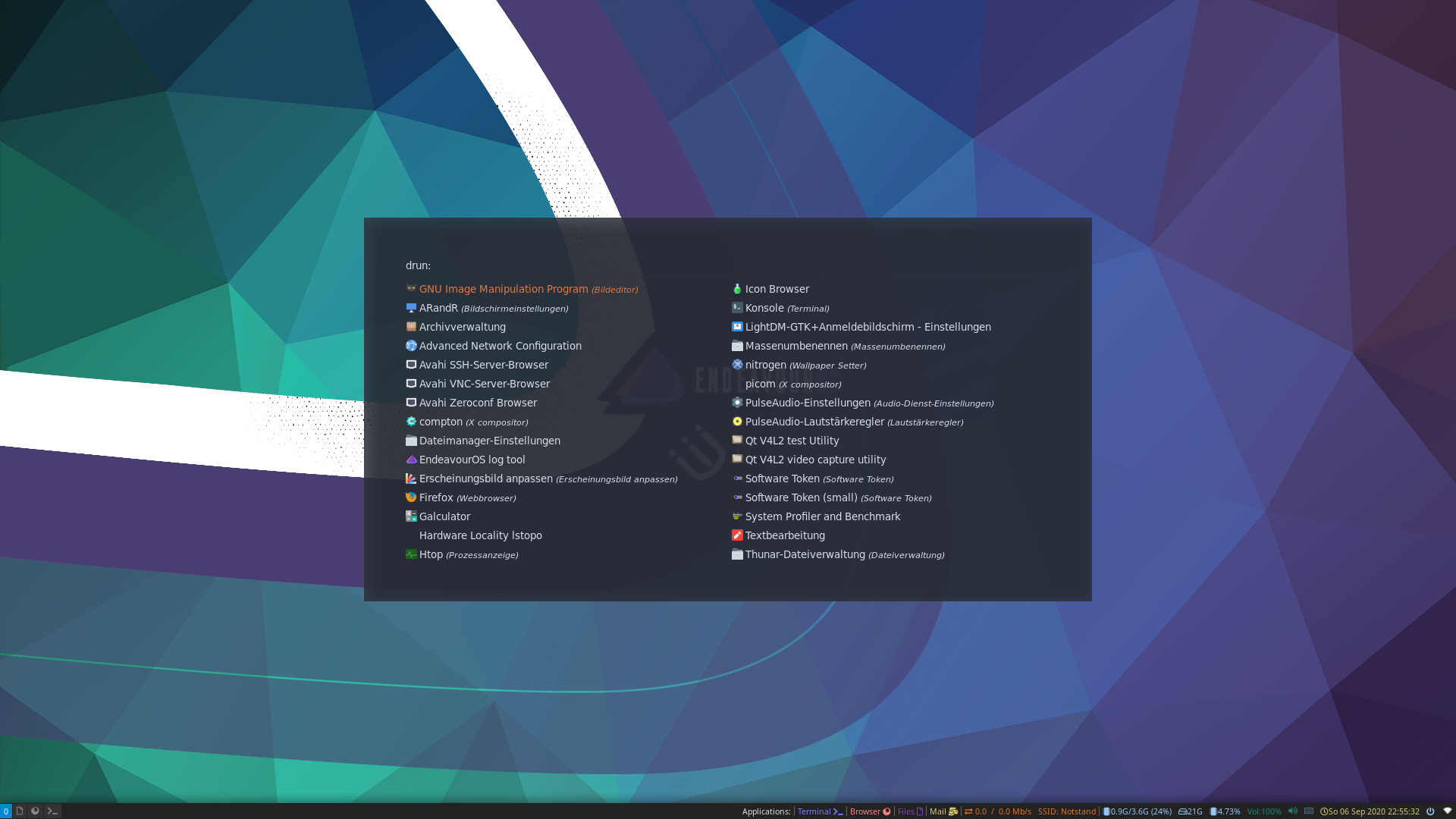
# application menu (rofi):
|
|

|
|
* color scheme = ~/.Xresources
|
|
|
|
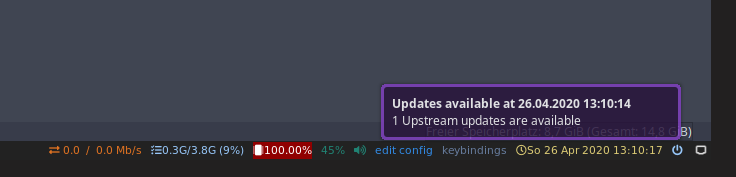
# Notifications are done with dunst:
|
|
|
|
* CONFIG FILE = ~/.config/dunst/dunstrc
|
|
|
|
# autostart application like they would do on a full DE with dex
|
|
https://github.com/jceb/dex
|
|
|
|
|
|
|
|
login to i3.
|
|
|
|
# If you need to change something to fit your needs start at the full wiki at EndeavourOS wiki page:
|
|
|
|
https://endeavouros.com/docs/window-tiling-managers/i3-wm/
|
|
|
|
----
|
|
|
|
# Tutorial to install EndeavourOS-i3 setup from scratch
|
|
**for later installs, if you have installed another DE on initial install from the ISO**
|
|
|
|
1. get the dot files
|
|
2. copy files to the right directories (.config of your user):
|
|
3. copy scripts inside ~/.config/i3/scripts must be executable ! [chmod +x] them please ;)
|
|
4. install needed packages
|
|
|
|
`git clone https://github.com/endeavouros-team/i3-EndeavourOS.git`
|
|
|
|
`cd i3-EndeavourOS`
|
|
|
|
`cp -R .config/* ~/.config/`
|
|
|
|
`chmod -R +x ~/.config/i3/scripts` (make scripts executable)
|
|
|
|
# install needed apps and programms for i3wm:
|
|
|
|
`sudo pacman -S --needed - < packages-repository.txt`
|
|
|